How to Run an LLM Locally: An Easy Guide for Windows, Mac and Linux Deliverable
How to Run an LLM Locally: An Easy Guide for Windows, Mac and Linux Deliverable
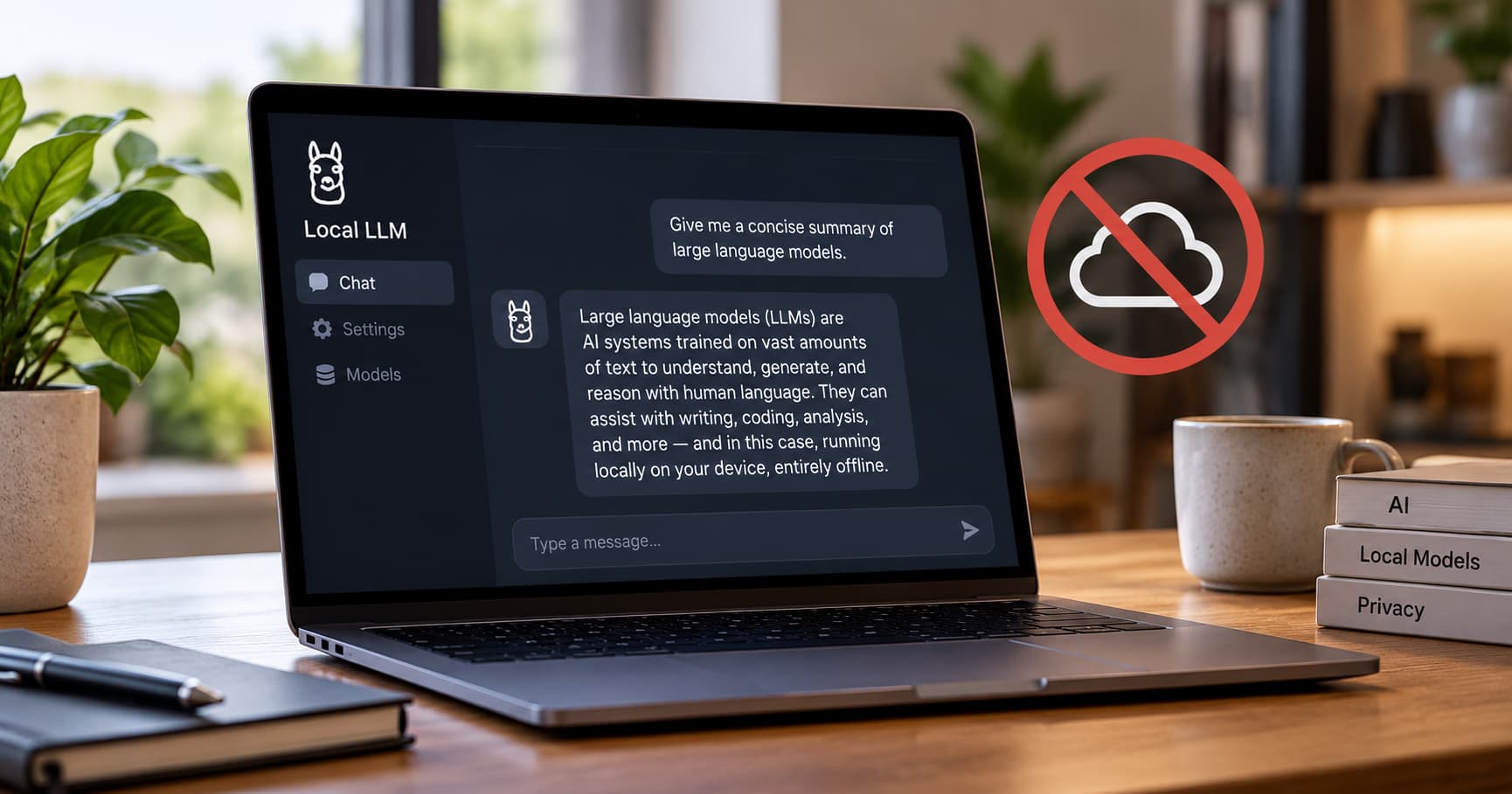
Running a large language model (LLM) locally means the AI runs on your own computer instead of someone else's servers over the internet. You install a free program, download an open model once, and then chat with it offline. The fastest way to start is a tool called Ollama: install it, open your terminal, and run one command. If you would rather click buttons than type commands, use LM Studio, which gives you a full graphical app.
This guide walks you through both, on Windows, Mac and Linux, with no programming experience assumed.
Key takeaways
- A local LLM is private by default and free to run. Once it is set up, it works with your internet switched off.
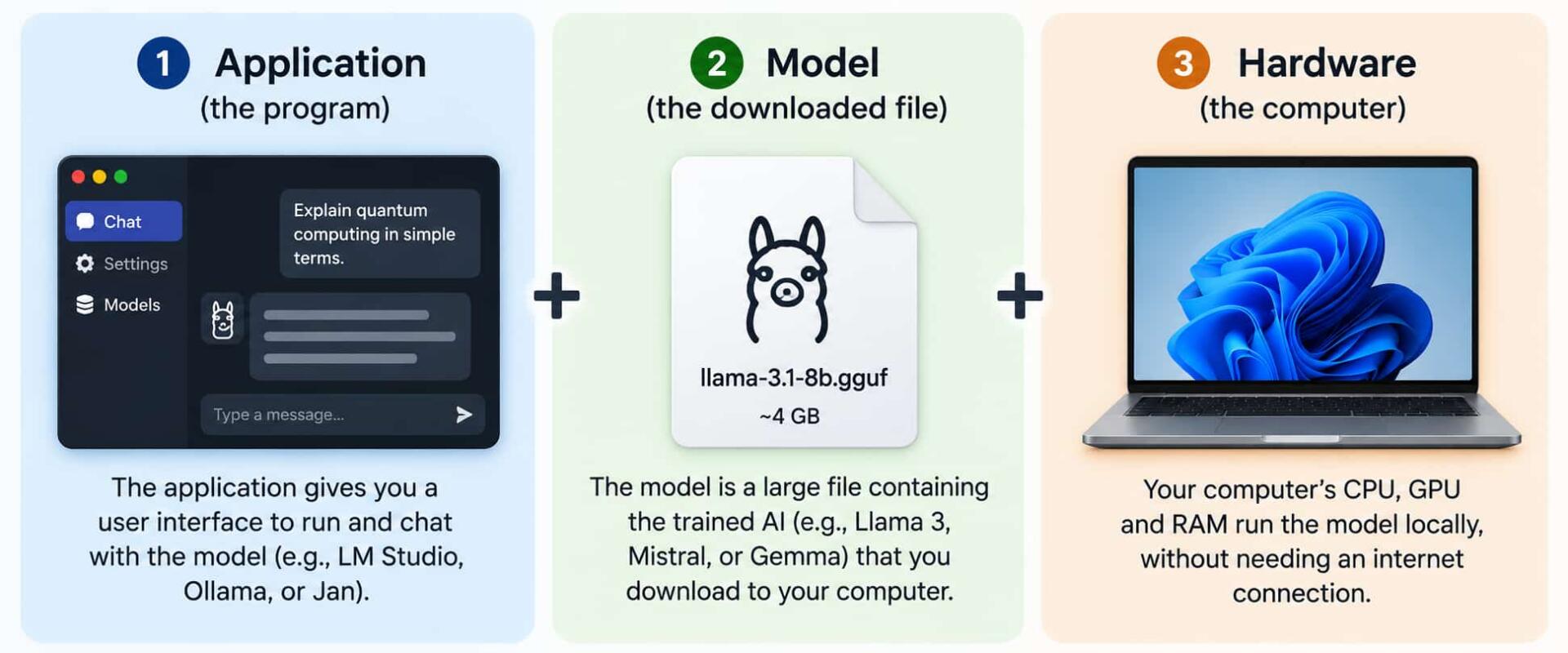
- Keep three things separate in your head: the application runs the model, the model is the file you download, and your hardware sets the ceiling.
- Choose Ollama for the quickest command-line path, or LM Studio for a point-and-click app. Both are free and run the same open models.
- Start small. A model like
llama3.2:1bruns on an ordinary laptop with no graphics card. Step up only once it works.
Picture a long flight with no wifi, or at least none worth paying for. You want to draft an email, tidy up some notes, and think through a plan. The AI assistant you normally reach for needs the internet, so it is useless at 35,000 feet. Meanwhile, a capable model could be sitting right on your laptop, answering instantly, with the plane's wifi switched off and nothing leaving your tray table.
That is the quiet appeal of running a model locally. No account, no monthly fee, no connection required once it is set up, and your words never leave your machine. People do it for privacy, for working offline, for experimenting without usage limits, or simply to understand how these models work. The setup used to be fiddly. Today it takes a few minutes.
Before a single command, it helps to separate three things beginners often blur together.
The program you install
A free tool like Ollama or LM Studio. It runs the model and gives you a place to chat. Think of it as the player.
The file you download
The actual AI, a large file (often 1 to 5 GB) with a name and version tag like llama3.2:1b. Think of it as the record you play.
Your computer's power
Your disk space, memory (RAM) and, if you have one, a graphics card. This decides how big a model runs and how fast it replies.
The application is permanent. You can download many different models into it and swap between them. The model is just a file. The hardware sets the ceiling on which models run comfortably. Hold those apart and the rest of this guide falls into place.
01What running an LLM locally actually means
Most people meet AI through a website or an app that sends every message to a company's servers. That works well, but it is not the only way. A local model lives on your disk and runs on your own processor and memory. When you ask it something, nothing is sent anywhere.
The trade is straightforward. Hosted services give you the largest, sharpest models with no setup. Local models give you privacy, offline access, and no running cost, in exchange for a few minutes of setup and the limits of your own hardware. For a lot of everyday tasks, a local model is more than enough.
A local model is private by default. Turn off the internet and it still answers.
02How a model runs on your computer
An LLM is a large file full of numbers (called parameters) that together have learned patterns in language. When you ask a question, the application loads those numbers into your computer's memory and uses them to predict a helpful response, word by word. Every step happens on your machine.
Model size is usually written in billions of parameters, shortened to "B". A 1B model is small and fast and runs on almost any recent laptop. A 7B or 8B model is more capable but needs more memory. Very large models (70B and up) are usually left to servers with powerful graphics cards. Bigger models tend to give better answers but need more hardware and reply more slowly. For a first run, smaller is better. You want to see it working before you push your machine.
03Ollama or LM Studio: which one is right for you
Both are free, both run open models completely offline, and both work on Windows, Mac and Linux. The difference is how you use them day to day.
| Ollama | LM Studio | |
|---|---|---|
| How you use it | Mostly short typed commands in a terminal. It also ships a desktop app. | A full graphical app. You click to search, download and chat. |
| Best for | People happy to type a command, and anyone who later wants to connect the model to other tools or scripts. | People who prefer a visual, point-and-click experience and never want to see a terminal. |
| Finding models | You use a short tag such as llama3.2:1b. | A built-in Discover tab lets you search and browse models visually. |
| Getting started | One install, then one command to run a model. | One install, then a few clicks to download and load a model. |
| Cost | Free. | Free. |
If you have never used a terminal and the idea makes you uneasy, start with LM Studio (jump to section 07). If you are comfortable typing a line or two and want the quickest path, start with Ollama in section 05. You can install both and decide later. They do not interfere with each other.
04Storage, RAM and GPU memory are three different things
This is where most beginners get confused, so it is worth thirty seconds. Three separate parts of your computer matter, and they are not the same.
As a rough starting point, not a hard rule:
- 8 GB of RAM: comfortable with small models in the 1B to 4B range.
- 16 GB of RAM: comfortable with 7B and 8B models, which is where many people settle.
- 32 GB or more, or a dedicated GPU: opens up larger models and faster replies.
These share one pool of memory between the processor and graphics, called unified memory. There is no separate VRAM to worry about. Just look at your total memory and use the RAM guidance above.
You do not need to find out before starting. Pick the small starter model below. If it runs well, try a bigger one. A model that is too large will not harm your computer. At worst the reply is slow or the app says it cannot load it.

05Install Ollama on Windows, Mac and Linux
Ollama is the quickest way to get a model running. First you install the application once. The steps differ slightly by operating system, so follow only the panel that matches your computer.
Go to ollama.com/download, download the installer for your system, and run it like any other app. On Mac, open the downloaded file and drag Ollama into your Applications folder, then open it once.
That is the whole install. Ollama now runs quietly in the background, ready for commands.
Open your terminal and paste this single line, then press Enter:
curl -fsSL https://ollama.com/install.sh | shThis downloads and sets up Ollama automatically. When it finishes, Ollama is installed and running.
Open the place where you type commands
You will run Ollama with short commands. The window where you do this has a different name on each system, but it works the same way.
- Windows: click Start, type PowerShell, and open it. A dark window with a blinking cursor appears. Every command below goes here.
- Mac: open Terminal (press Command and Space, type "Terminal", press Enter).
- Linux: open your Terminal app.
To run any command: click into the window, type or paste it exactly, and press Enter. If a command seems to do nothing for a while, that is normal. Wait for the cursor to return before typing the next one.
06Download, chat with, and stop a model
Now the fun part. We will use a small, current model called Llama 3.2 in its 1-billion-parameter size. Its exact tag is llama3.2:1b and the download is about 1.3 GB. It is a good first choice because it runs on a modest laptop without a graphics card.
ollama run llama3.2:1bChat with it
Once you see the >>> prompt, type a message and press Enter, the same as any chat. Try something simple first, such as: "Explain what a local LLM is in two sentences." The reply appears right there in the window. You can turn off your internet and it keeps working.
Leave the chat and free up memory
/byeLeaving the chat does not always clear the model from memory right away. To unload it fully:
ollama stop llama3.2:1bThree more commands worth knowing
ollama ls            # list every model you have downloaded
ollama ps            # show which models are loaded and running now
ollama rm llama3.2:1b  # delete a model from disk to reclaim space
Once the starter model works, try a larger, more capable one by changing the tag. For example ollama run llama3.2:3b (about 2 GB) or ollama run gemma3:4b (about 3.4 GB). An even lighter option than the starter is gemma3:1b (about 806 MB). Browse the full, current list at ollama.com/library, where each model page shows its exact tags and download sizes.
07Prefer clicking? Use LM Studio instead
If the command line is not for you, LM Studio gives you the same result through a normal app window. You search for a model, download it, and chat, all with your mouse. It runs on Windows, Mac and Linux.
- Download and install the appGo to lmstudio.ai, download the version for your system, and install it like any other program. Open it when it is done.
- Find a model in the Discover tabClick the Discover tab (the magnifying-glass icon). You can pick a suggested model or search by name. For a light first try, search for a small model such as "Llama 3.2 1B". Click to download it and wait for the progress bar to finish.
- Load the modelGo to the Chat tab and open the model selector at the top. Choose the model you just downloaded. Loading places it into your computer's memory, which takes a few seconds. You can leave the load settings on their defaults.
- Start chattingOnce it has loaded, type a message in the box at the bottom and press Enter. The reply appears in the window, generated entirely on your computer.
- Unload the model when you are doneTo free up memory, open the model bar at the top of the Chat tab and choose Eject to unload the model. Closing LM Studio completely also unloads it. The downloaded file stays on your disk for next time.
After step 4, you are holding a back-and-forth conversation with a model that needs no internet. If a model will not load, LM Studio usually tells you it is too large for your available memory. Pick a smaller model from Discover and try again.

08Common problems and simple fixes
- The model is very slow. It is probably too large for your memory. Switch to a smaller one, for example drop from a 7B to a 3B or 1B, and close other heavy programs to free up memory.
- "Command not found" or nothing happens. The terminal cannot find Ollama. Close the window completely, open a fresh one, and try again. If it still fails, reinstall Ollama and restart your computer.
- The download keeps stopping. Model downloads are large and need a steady connection. Run the same
ollama runcommand again. It picks up where it left off. - You have run out of disk space. Models add up. Use
ollama lsto see what you have, thenollama rmto delete what you are not using. In LM Studio, manage downloads from the My Models section.
Running AI yourself means the command line, hours of setup, and an expensive PC with a huge graphics card.
A free app, a small download, and an ordinary laptop get you a working model in minutes. Pick a graphical tool and you may never type a command at all.
09Where local models fit, and where they do not
Running a model on your own machine is genuinely useful for private drafting, quick questions, learning, and working offline. It is private by default and costs nothing to run. For many personal tasks, a 7B or 8B model on a decent laptop is all you need.
Local models have limits too. They are smaller than the largest hosted models, so their answers can be less sharp on hard tasks. They do not automatically know about your company's documents, databases or systems, and setting them up to work reliably across a team, with security and accuracy you can trust, is a different kind of project.
Frequently asked questions
What does it mean to run an LLM locally?
Is running an LLM locally free?
Do I need a GPU to run a local LLM?
How much RAM do I need to run a local LLM?
Ollama or LM Studio: which should a beginner use?
Which is a good first model to run locally?
llama3.2:1b, about 1.3 GB) is a good first choice because it runs on modest laptops without a graphics card. Once it works, you can step up to a 3B or an 8B model for stronger answers. Ollama's model library lists each model's exact tags and sizes.Can I use a local LLM without the internet?
How do I stop or delete a local model?
/bye, unload a model from memory with ollama stop followed by its tag, and delete it from disk with ollama rm followed by its tag. In LM Studio, use the Eject option in the Chat tab to unload a model, and the My Models section to delete downloaded files.Take it further
Three good next stops once your first model is running: the official places to find models and tools, and where to go when a laptop experiment turns into something your business needs.
Thinking beyond a single laptop?
Running a model on your own machine is a great way to learn. Turning AI into something that works reliably across your data, your systems and your team is a different step. Auriga IT builds and runs that kind of production-grade AI, and a short AI readiness check is a sensible place to start.
Explore Auriga IT AI servicesRelated content

Auriga: Leveling Up for Enterprise Growth!
Auriga’s journey began in 2010 crafting products for India’s [...]